
Onboard intelligence, fully documented.
A great mix when the job calls for a bipedal platform, but the arms still need to be high-precision.
From power-on to first command
The short version of the ILLEON Webserver Guide's power-on/off and quick-start chapters — enough for a supervised operator to go from a cold robot to driving it in the browser.
Rig the robot
Suspend the robot from the crane or manipulator boom for support. Lower it until the feet touch the ground, then continue lowering about 5 cm further — that's the position it needs to switch straight into a motion state once powered on. Skip this and the robot moves uncontrollably the moment motion is enabled: it needs its feet grounded to balance itself, not to hang from the crane.
Power on
Press the power button on the robot's back — a short press, then a long press — until it turns on (5–10s). Boot takes about 120s in total; switching it into a standing/motion state happens next, in step 03, however you choose to operate it.
Aim-Master Remote Control
The handheld/tablet remote that ships with the robot, paired one-to-one with its e-stop. A guided on-device wizard switches through posture states (hanging stand → assisted standing → walking mode). From the main Workbench you get full motion control — including the robot's built-in interaction routines and dance/demo moves — plus SLAM map and task navigation, entirely on AGIBOT's own app.
Webserver
Connect a laptop to the robot over WiFi or LAN, then browse to the robot's IP at port 9000 — its WiFi IP, or 192.168.2.50:9000 on LAN. Confirm the modules are running, then use Custom Controls to switch the robot into locomotion mode. This is Illeon's ROS 2 + browser cockpit: SLAM/Nav2, teleoperation bridges, the AI chat assistant, and everything else covered in Why Illeon.
Power off / E-stop
Normal shutdown: secure the robot on the boom, switch to Legs Relaxed, then hold the back power button ≥2s until operating noise stops. Emergency stop: press the red mushroom button — every joint disables immediately, so boom support is critical.
Full remote startup routine, recorded end-to-end on a live unit. This shows the field variant — the robot can also be brought up without crane/boom support, unlike the rigged procedure in steps 01–04 above.
Full procedure and safety warnings: ILLEON Webserver Guide, §3–4.
One vendor for hardware, software, and support
Illeon is AGIBOT's German distributor. You get the A2 Ultra hardware, Illeon's ROS 2 + webserver software layer on top of it, and ongoing support, all from one vendor: one contract, one point of contact, no separate SDK integration to figure out yourself.
Movement & Teleop
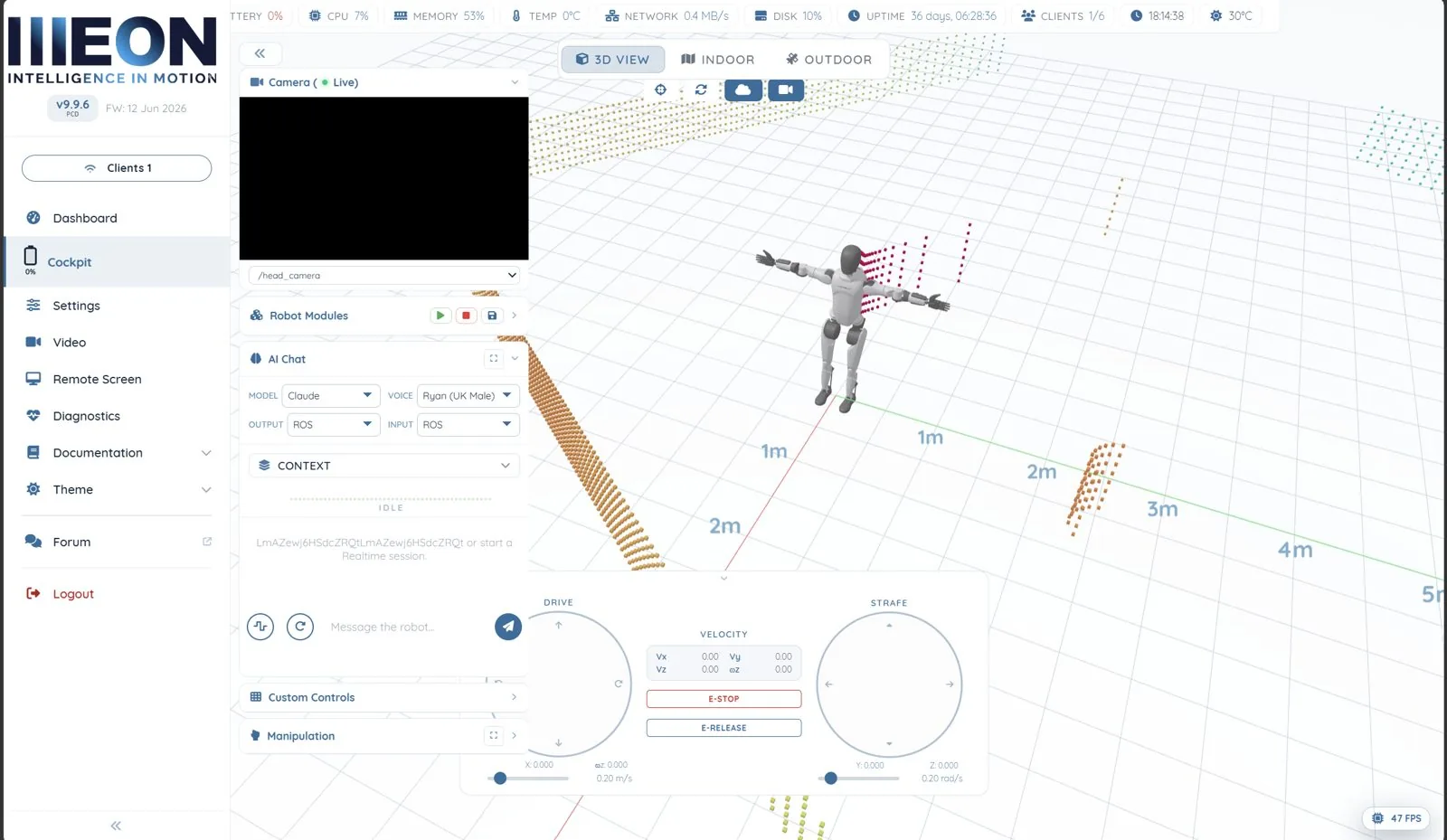
Omnidirectional drive with dual thumb-stick style Drive/Strafe pads, live velocity readout (Vx/Vy/Vz/ωz), and hardware E-STOP / E-RELEASE.
Joint & Inverse Kinematics
Manipulation panel with three modes — None, Joint and Cartesian — driving all 52 joints directly or resolving arm end-effector targets through the onboard IK service.
AI Chat Assistant
Talk to the robot in text or realtime voice. Swap backends on the fly — Claude, OpenAI, Gemini or a local Ollama model — with tool-calling wired directly into ROS 2.
SLAM & Navigation
Live LiDAR point cloud in the 3D view, indoor/outdoor Nav2 stack with Set Pose, Nav Goal, map load/save, waypoint patrols and no-go zones.
Camera & Perception
Multi-view live streaming from the head camera and RealSense D435, with snapshot, record, and vision-driven skills like waypoint image capture.
Diagnostics & Monitoring
Per-joint position/velocity/effort tables, ROS 2 diagnostics, live CPU/memory/network/temperature graphs, API latency and endpoint error rates.
Engineering & Custom Hardware
Need an end-effector or sensor the robot doesn't ship with? Our engineering team integrates custom grippers, sensors, and other hardware directly into the platform — mechanically, electrically, and in the ROS 2 stack.
See it in the browser
A guided tour of every page in the A2 pilot interface, captured directly from a live unit.
More ways to drive the arms
The Manipulation panel's Cartesian mode isn't limited to the on-screen sliders — the same onboard inverse-kinematics endpoint (WebSocket :9001) also accepts poses from external input devices.
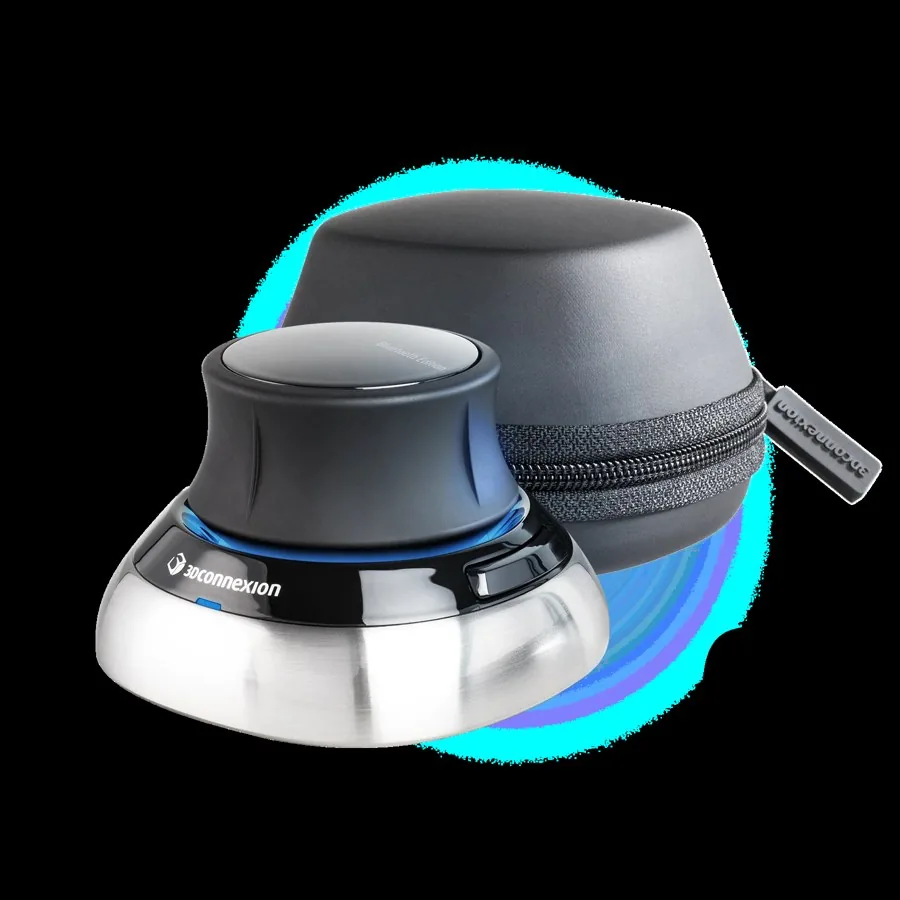
SpaceMouse
A 6-DoF desktop puck — push, tilt and twist it to move the end-effector in free space. Auto-reconnects on drop; its two buttons swap the active arm or ramp the gripper open/closed; each arm holds its pose independently.
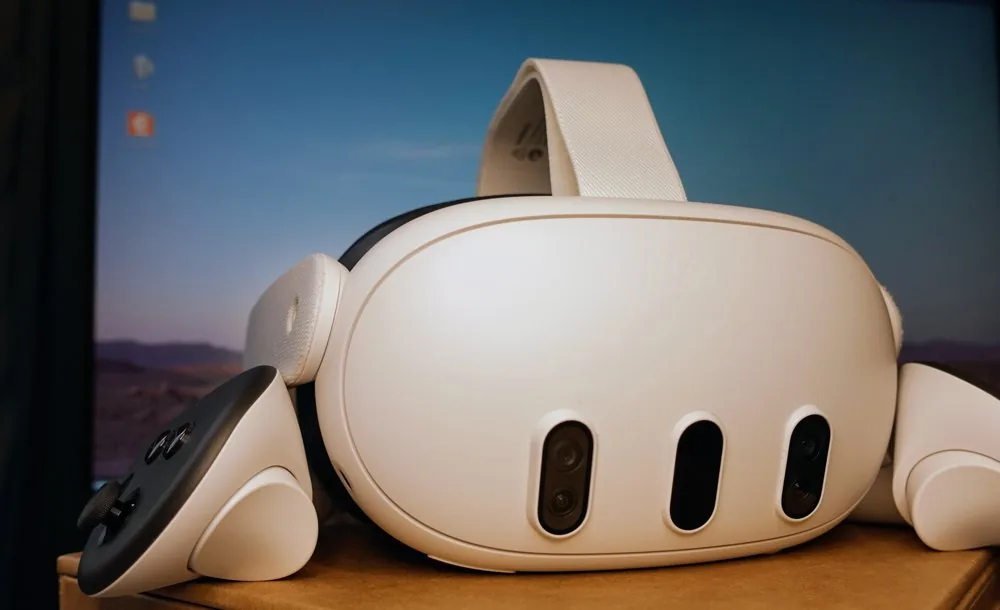
Meta Quest
Full VR teleop — put on the headset and drive the arms by moving your hands, no desk or cables required. Grip / trigger / A / B map to the end-effector pose and fingers; both thumbsticks drive the base.
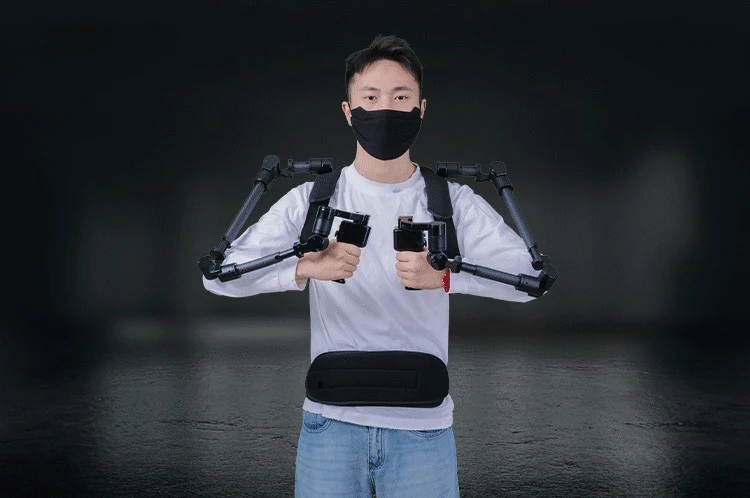
Foxtech ExoArm-7
A wearable exoskeleton leader arm — put it on and move your own arm, 1:1, no controller in hand. The standalone driver already speaks the same Cartesian endpoint over USB, but has not yet completed end-to-end validation on real hardware.
From demo-ready to deployed
Two speeds: what's already switched on today, and how we get a brand-new use case from a customer's video clip to a working deployment.
Demos, fairs & shows
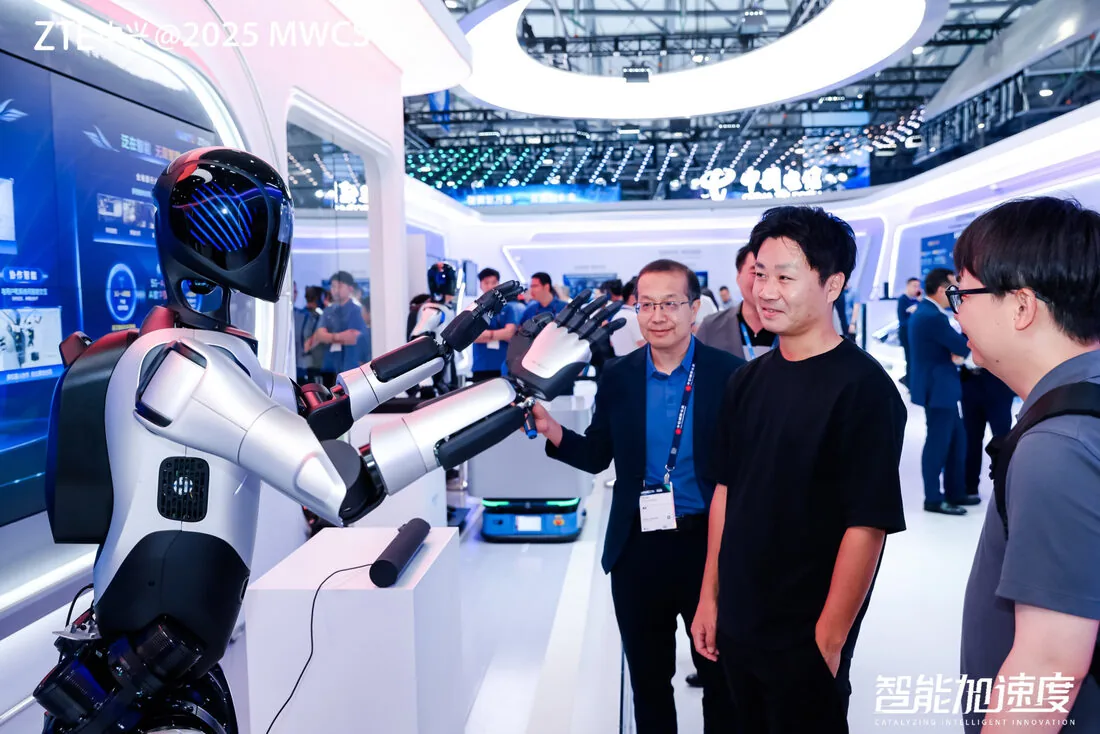
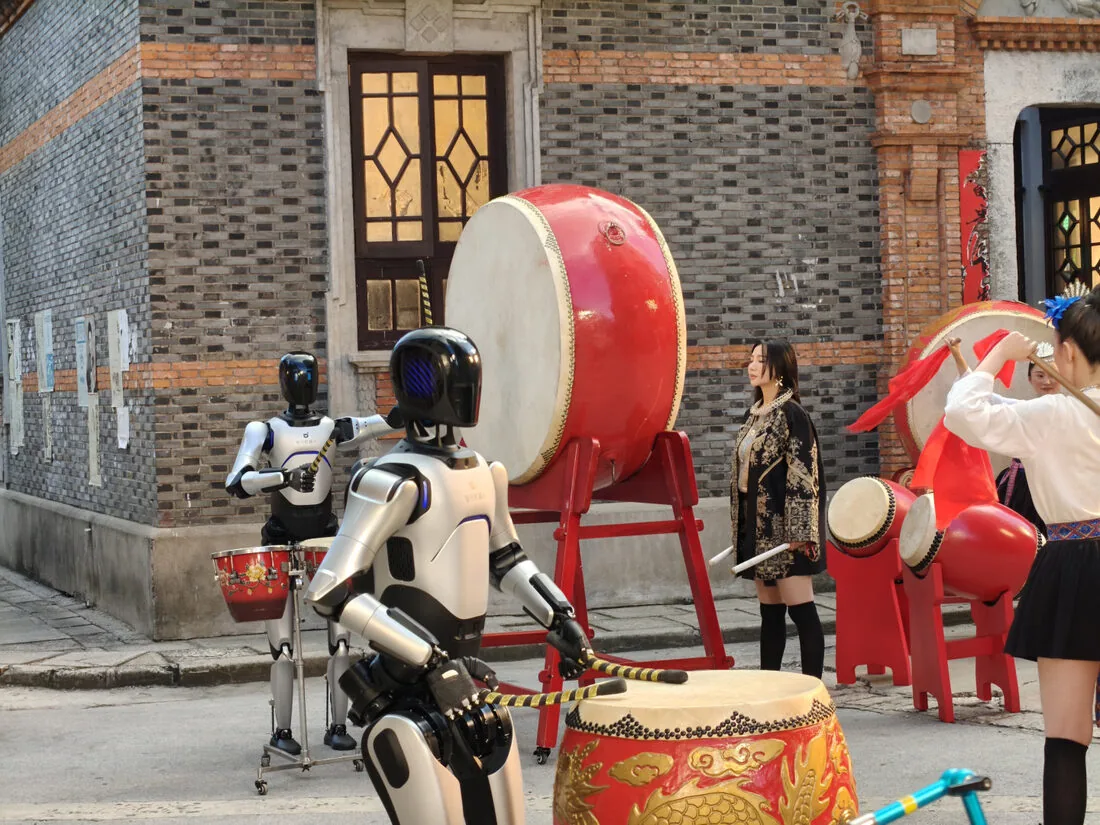
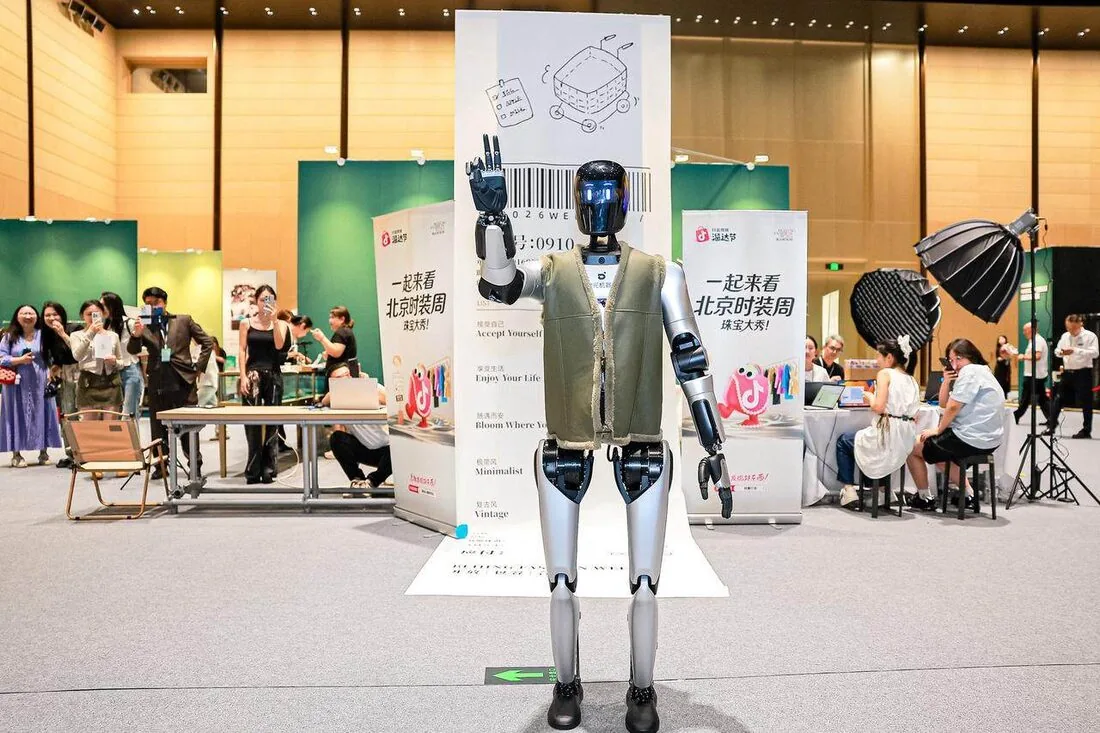
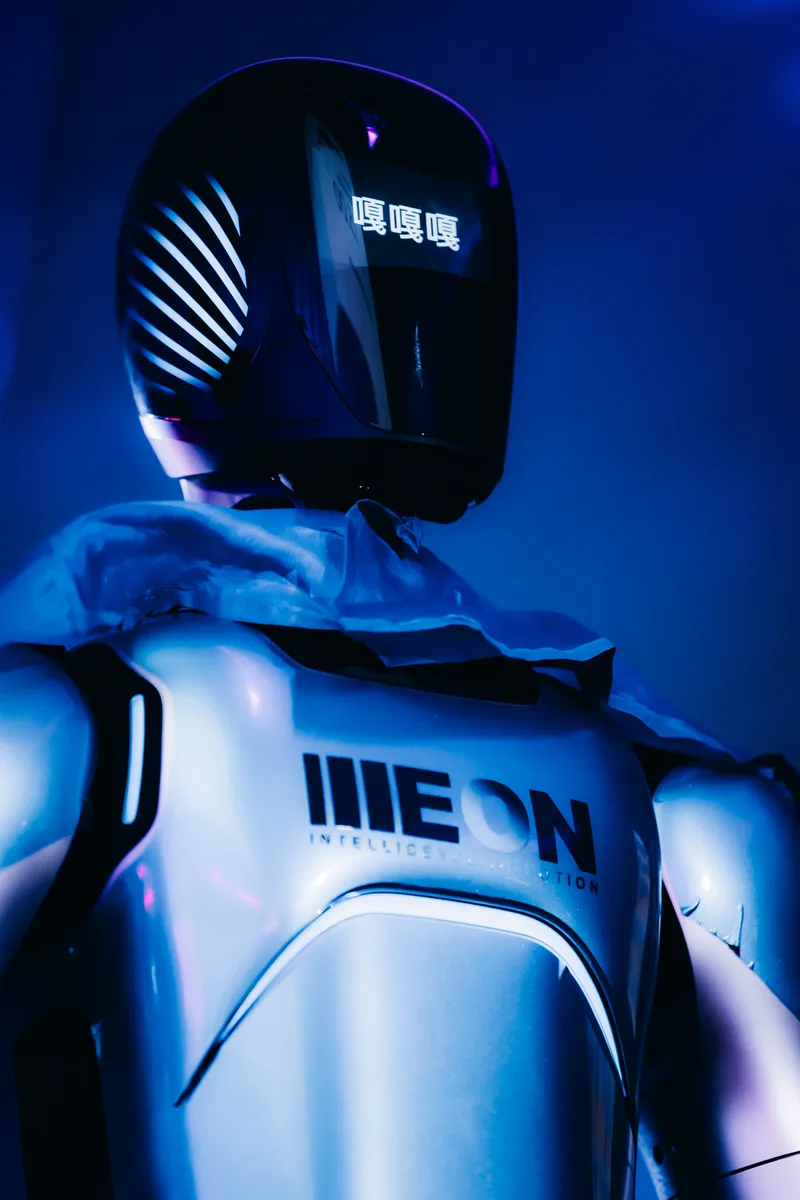
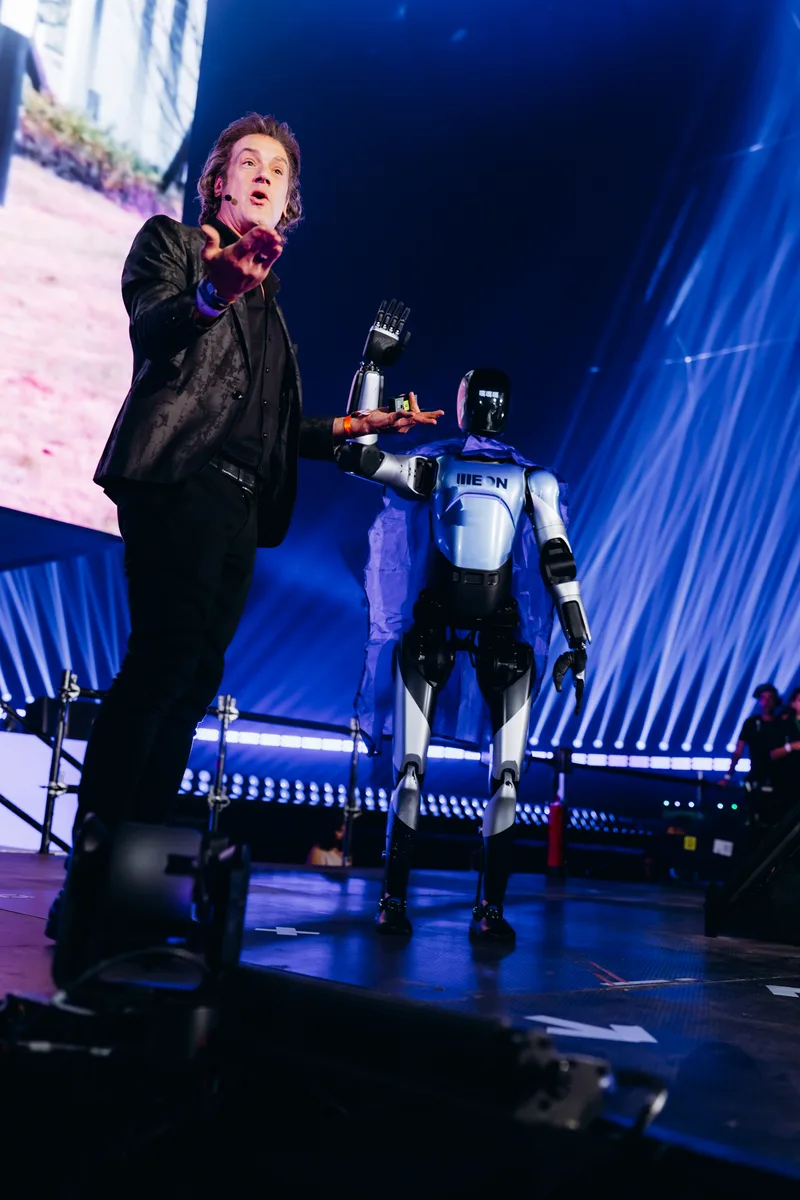
The same platform on show floors and stages worldwide — trade fairs, summits, brand launches, and public demos.
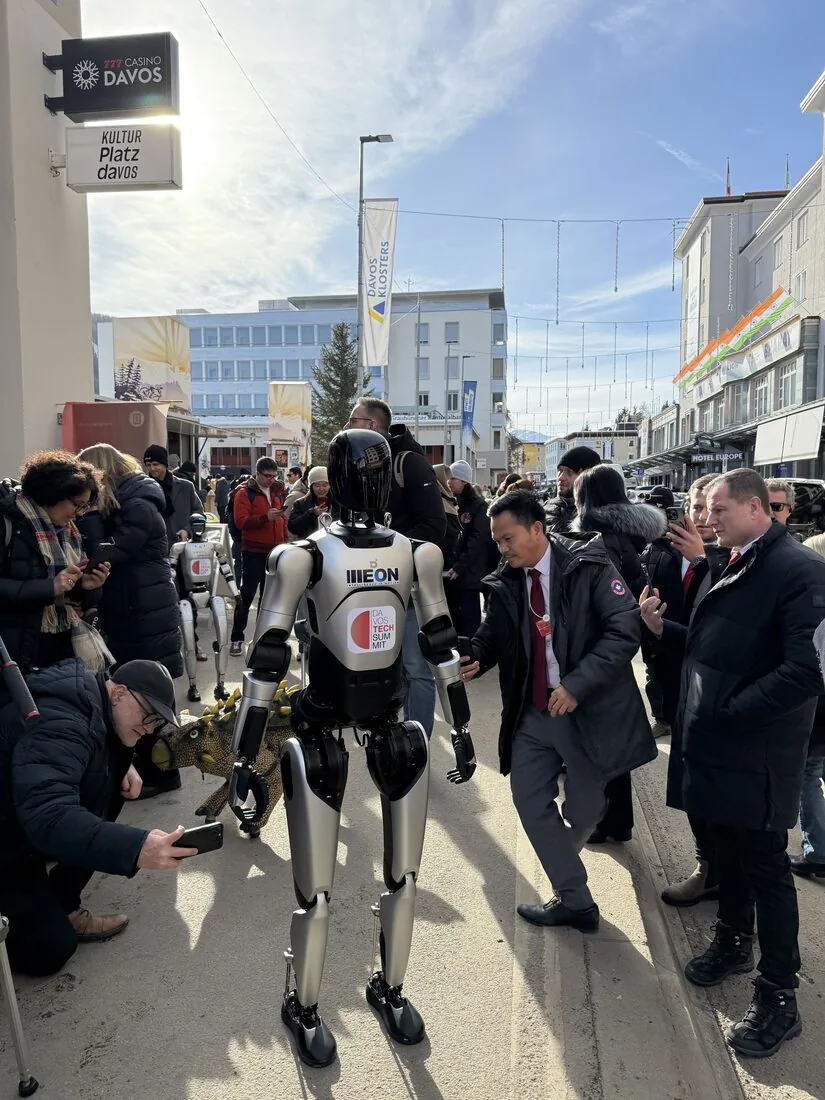
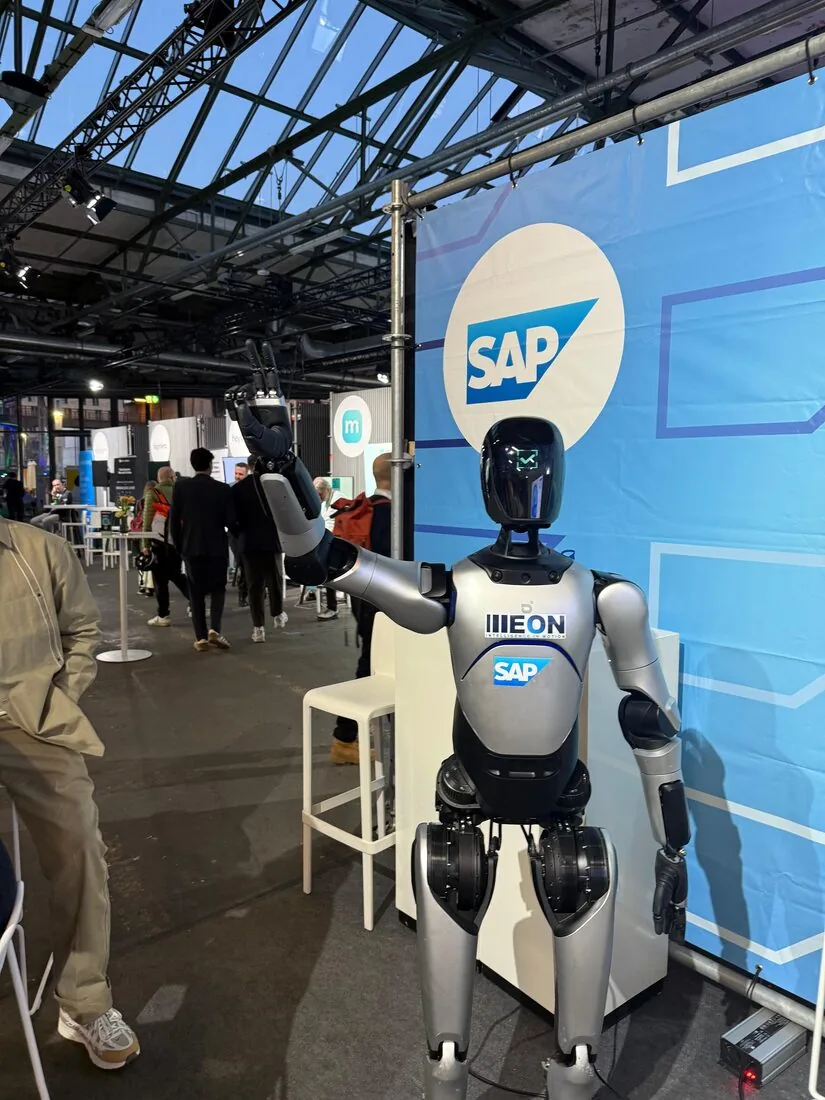
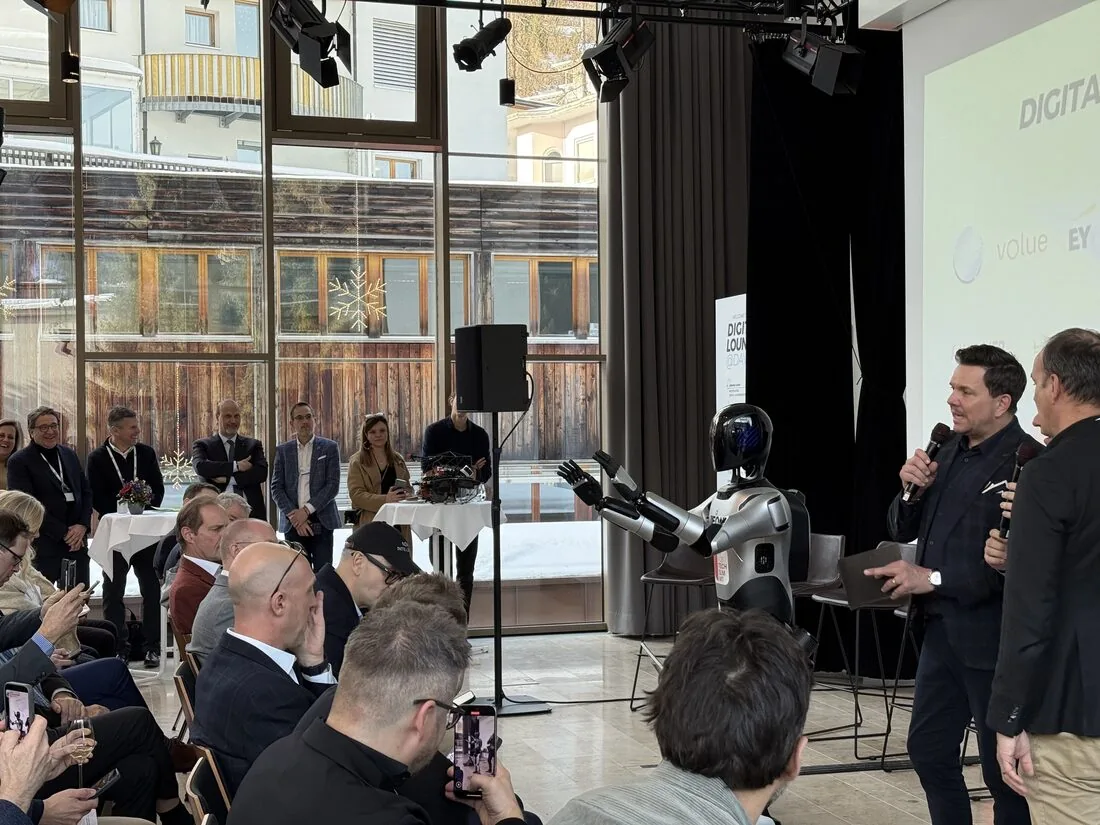
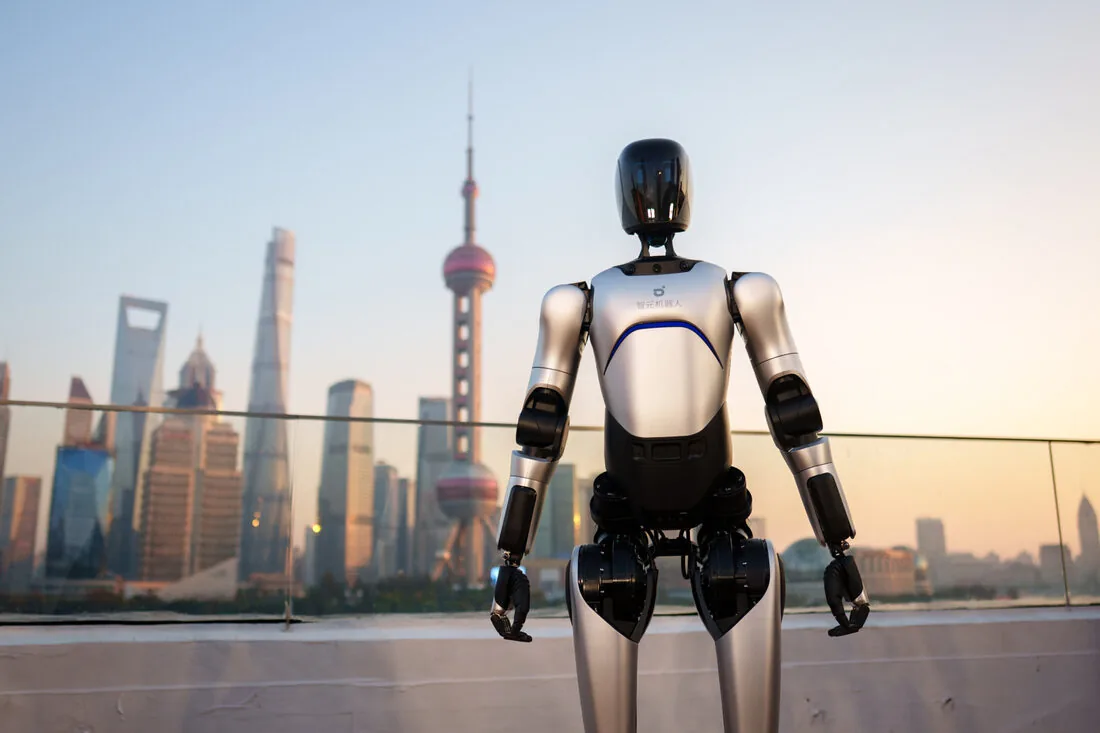
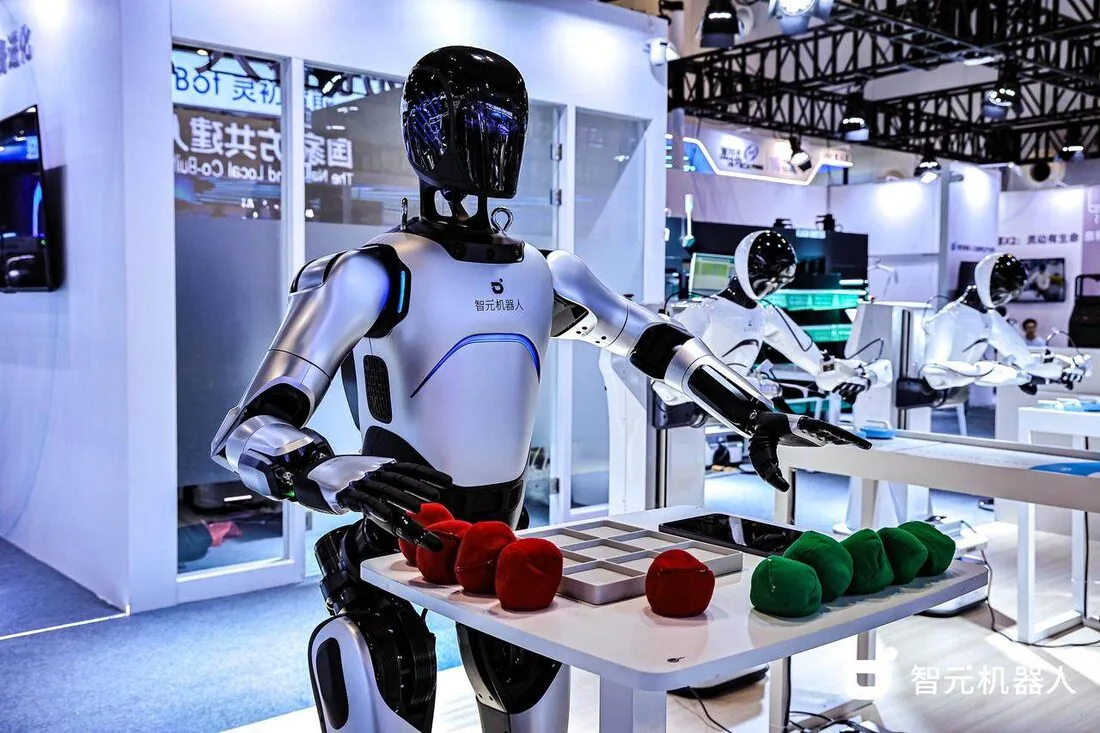
AI Chat — a demo that runs itself
Already live in the webserver's Cockpit: a Claude / GPT / Gemini-backed conversational interface with tool-calling wired directly into ROS 2, plus realtime voice. No integration work needed — it's one of the fastest ways to put the robot in front of people at a trade fair or in a showroom and have it hold up its end of a conversation while it moves.
See it in the Interface tour →Beyond the demo floor
Every deployment starts from a concrete task. Two we're asked about most:
End-of-Line Palletizing
Picking finished goods off the line and stacking them onto pallets by SKU, orientation and pattern — steady, payload- and reach-driven work the industrial-grade arms are built for.
Pick & Place / Kitting
Sorting or kitting parts from bins into fixtures or totes to a target layout — a good fit for either classical vision-based pick or a learned grasping policy, depending on part variability.
Working on something else — a different SKU mix, a machine-tending cell, warehouse logistics? Ask us for a demo built around your specific use case.
How we scope a new use case
Walked through end-of-line palletizing as an example — the same pipeline applies to most pick, place, or manipulation-heavy tasks a customer brings us.
Videos in
The customer sends footage of the task as it's done today — by hand, by an existing machine, however it happens now.
Evaluate & scope
We assess it against the robot's reach, payload and cycle-time envelope, and pin down what the videos don't show: tolerances, target throughput, the ROI bar it needs to clear.
Teleoperation POC
Before any learning happens, we drive the task ourselves. If a human can't do it acceptably through the robot's arms, no algorithm will either — this is where hardware fit gets proven, not assumed.
Classical Algorithms
Best when the task is geometrically well-defined — rigid, consistently placed objects, a structured environment. Vision-based recognition, motion planning and navigation give precise, explainable behavior — often the right call in regulated or safety-critical settings.
Imitation Learning
Best when objects are deformable, varied, or easier to demonstrate than to hand-code. We record teleoperated episodes — see Teleoperation, above — and train a policy directly from them.
Reinforcement Learning
Best when the task needs robustness beyond what demonstrations cover — contact-rich manipulation, recovering from failure — and can be simulated cheaply enough to train against a reward signal, usually with sim-to-real transfer.
These aren't mutually exclusive in practice — a lot of deployments combine classical perception with a learned grasping policy, or use RL to fine-tune an imitation-learned baseline. Every path ends the same way: defined success criteria (success rate, cycle time, failure handling), a production pass on safety and reliability, and a loop back to data collection as new SKUs or edge cases show up.
Manuals, SDK docs, robot description & compliance
Everything needed to operate the A2 Ultra safely, develop against it, or bring its model into your own tooling.
ILLEON Webserver Guide
The full onboard webserver manual: safety prerequisites, quick start over SSH & webserver, SLAM/map navigation, the complete ROS 2 package reference, and a fresh-install walkthrough.
Download PDFAGIBOT Product Manual
The manufacturer's own A2 Ultra manual covering hardware, motion capabilities (slope climbing, speed, waist teleop), interaction & voice control, and factory-level operation — straight from AGIBOT.
Download PDFAimDK SDK Developer Guide
AGIBOT's SDK reference for building on the A2: the AimDK communication protocol, motion control & motion player, map management, sensor data, health diagnosis, remote control and LED modules.
Download PDFAimDK SDK Releases
Every AimDK SDK build and IK package we have on file for the A2, straight from AGIBOT — release archives, dev builds, and the standalone IK package for both x86 and Jetson Orin. Not sure which one you need? Ask us.
A2 Robot Description (URDF)
Two variants, same skeleton: simplified is exactly the URDF + visual meshes the viewer above loads (~1.2 MB). Full is the complete a2_description package — xacro/URDF, visual & collision meshes, launch files, RViz config and package.xml (~14 MB) — drop it straight into a ROS 2 workspace, RViz, or MoveIt.
CE Certificates
The A2 Ultra holds CE certificates of conformity for the Machinery Directive (2006/42/EC), the Radio Equipment Directive (2014/53/EU), and product safety (EN 60335-1, EN ISO 12100), all issued by TÜV Rheinland. Certified as an incomplete machine — physical guarding and a final risk assessment by the end user are required per Annex II before commissioning.
Download certificates (.zip)A2 Complete Source Repo (Webserver Binary-Compiled)
The complete workspace as it ships on the unit — every package (platform, navigation, arm IK, webserver, etc.) as readable source, with the webserver's license and ROS-bridge modules compiled to native binaries exactly as deployed, so customers can inspect and extend the stack without being able to alter the parts that enforce licensing. Shared with named customers under NDA only. Click to sign in if you already have portal access, or request it — we'll review and follow up.
Already have portal access to something else? Sign in directly.
If something goes wrong
Three tiers, in order — we start at the fastest and only escalate as far as the problem actually requires.
Remote access via VPN
Most issues get diagnosed and fixed without anyone leaving their desk — but only once you switch it on. The robot's VPN link back to us is off by default; we have no standing access to a customer's robot, and it's activated on your side to stay clear of data-protection obligations. Once enabled, we connect in over VPN — or through a client device on-site if the robot itself can't reach us — and debug it directly.
Recovery box
If the robot's own networking is the problem, we ship a preconfigured recovery box to site. Plug it in and it opens a tunnel back to us — the same remote access as Tier 1, without needing IT support on your end.
Depot repair in Germany
For hardware damage or anything that needs hands-on work, send the unit back to us. Repairs happen in-house in Germany for a fast turnaround — no routing through the manufacturer.
Not sure which tier fits? Just reach out — support@illeon.de — and we'll triage it.
We're here for the whole deployment
Fleet rollout, a new use case, or a question about a specific webserver module — the Illeon team can help.
support@illeon.de